MPC-HC-Video-Editor
MPC-HC Video Editor (C# / WPF)
Modern rewrite of the original AutoHotkey MPC-HC Video Editor v2.1.
Bookmark ranges in a video playing in MPC-HC, then cut, join, convert or extract audio from them with ffmpeg.
Fully portable. Everything the app reads and writes — settings.json,
stalls.log — lives beside the executable. There is no installer. Copy the
folder anywhere and it runs.
Upgrading is safe. A spare copy of settings.json is kept in
%APPDATA%\MPC-HC Video Editor\, and is used for one thing: if the app starts
and finds no settings beside the executable but does find that copy, it restores
from it. So the common upgrade — delete the old folder, unpack the new one —
keeps your shortcuts, naming tags, suffixes and hotkeys instead of silently
resetting them. Settings beside the executable always win, so a deliberately
fresh copy of the folder stays fresh, and the same step carries over the
configuration of an earlier non-portable install, which kept its settings in
that same place.
Screenshots
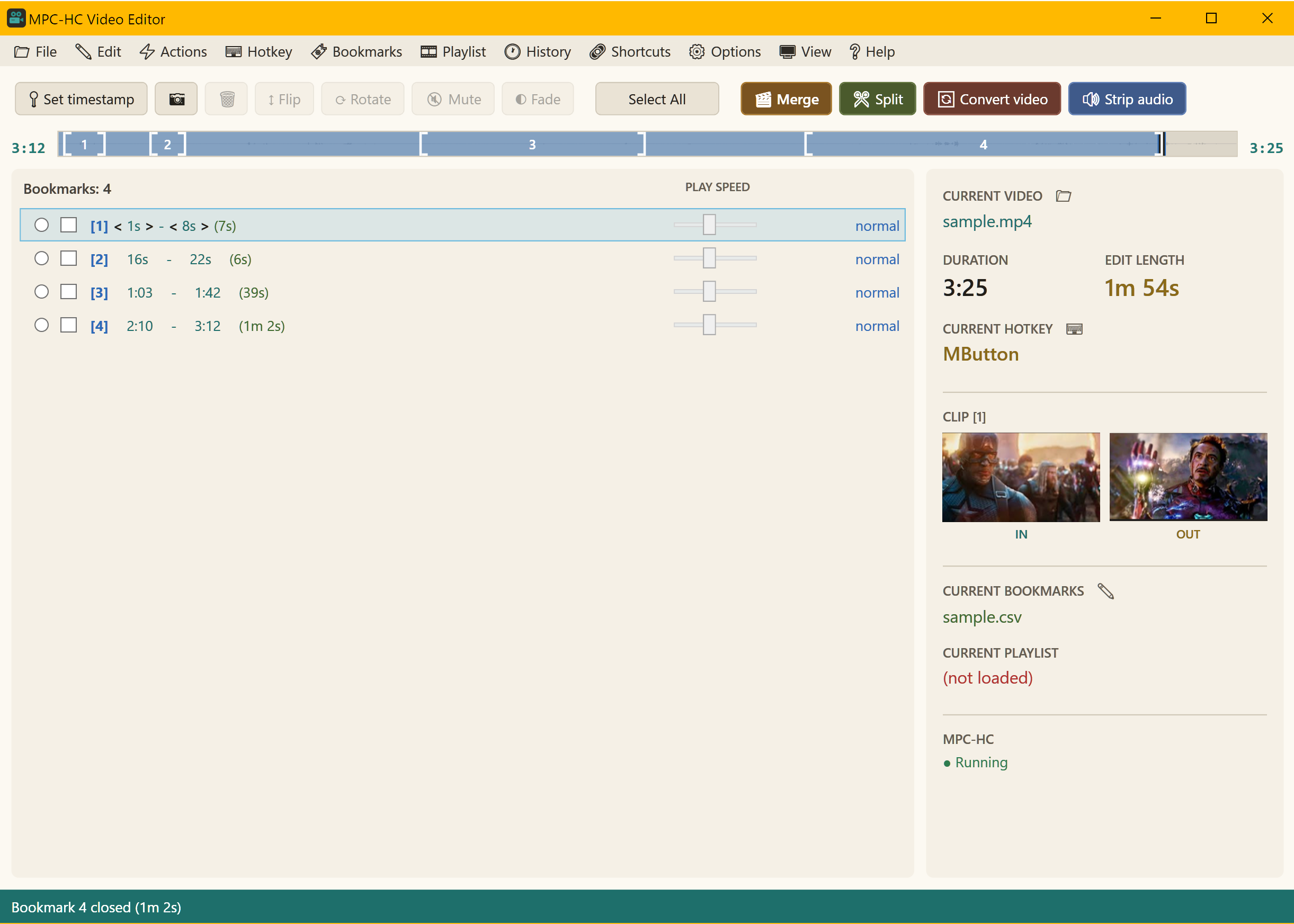
The window above is where the editing happens: the cut list with its per-cut controls, the action toolbar, the timeline, and the current video, bookmarks and player state down the right-hand side.
While a video is playing you work in the compact overlay instead — it appears over the player, never takes focus, and lists every bookmark without scrolling. The full window comes back the moment MPC-HC stops being the active window.
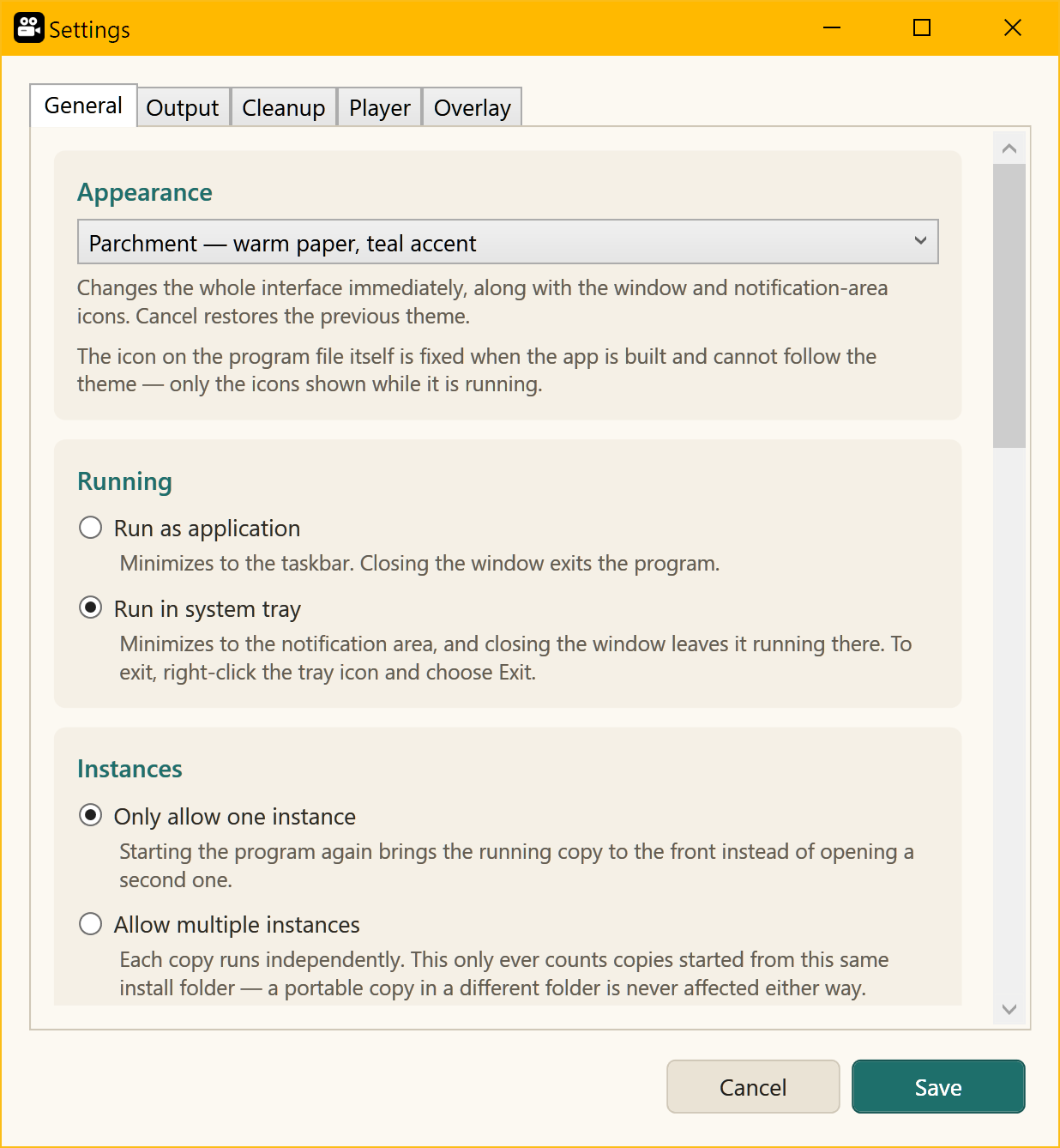
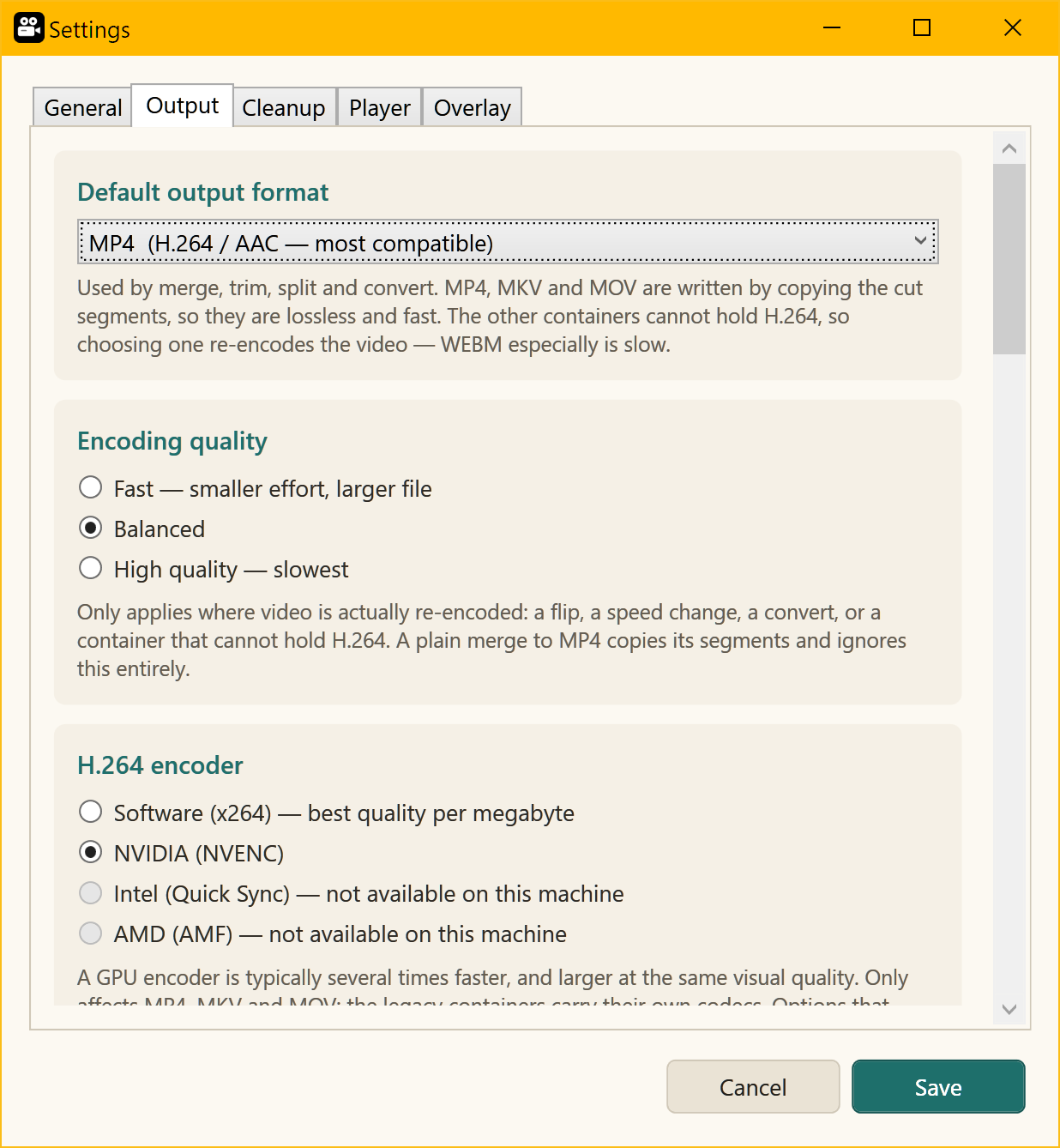
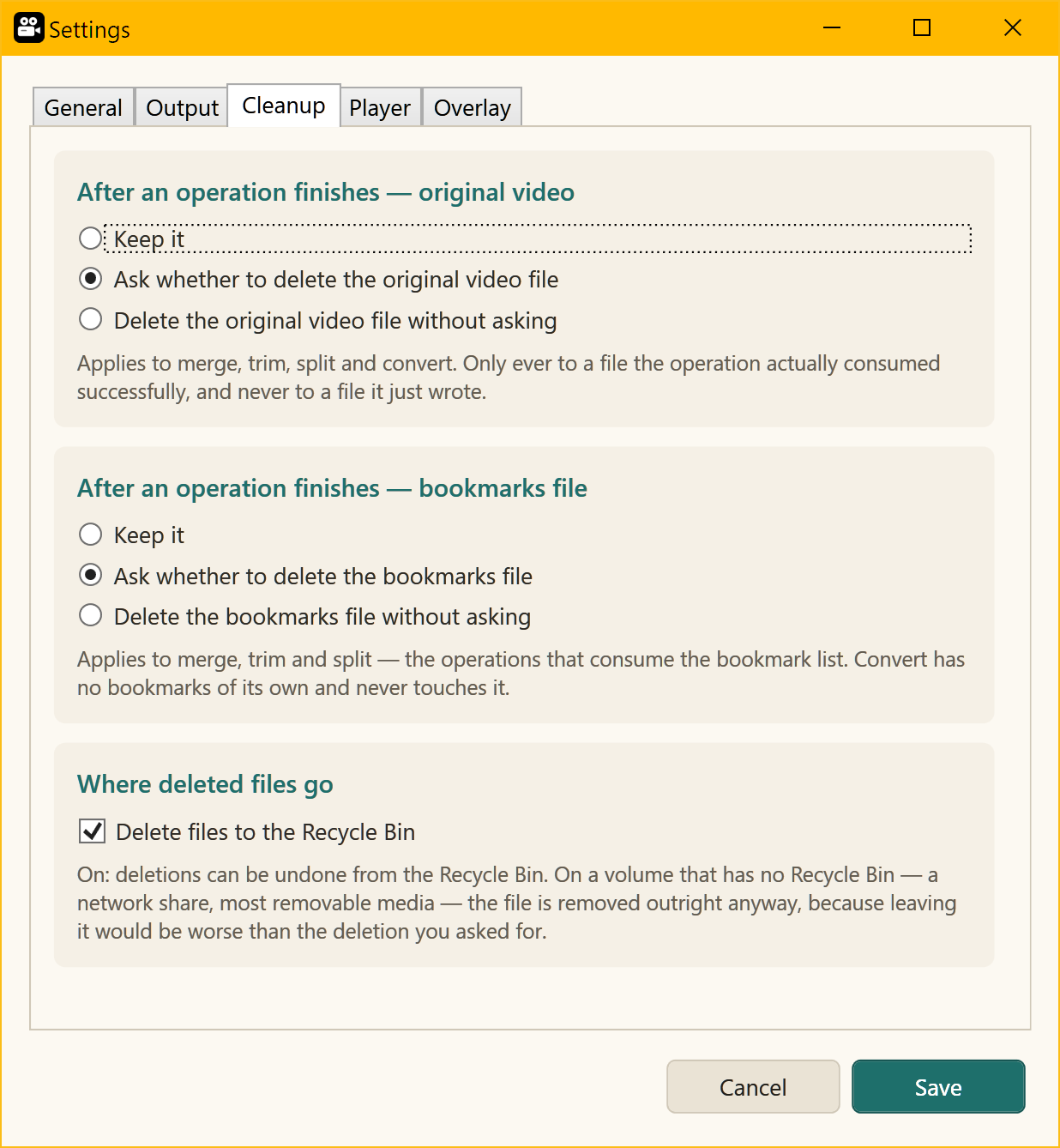
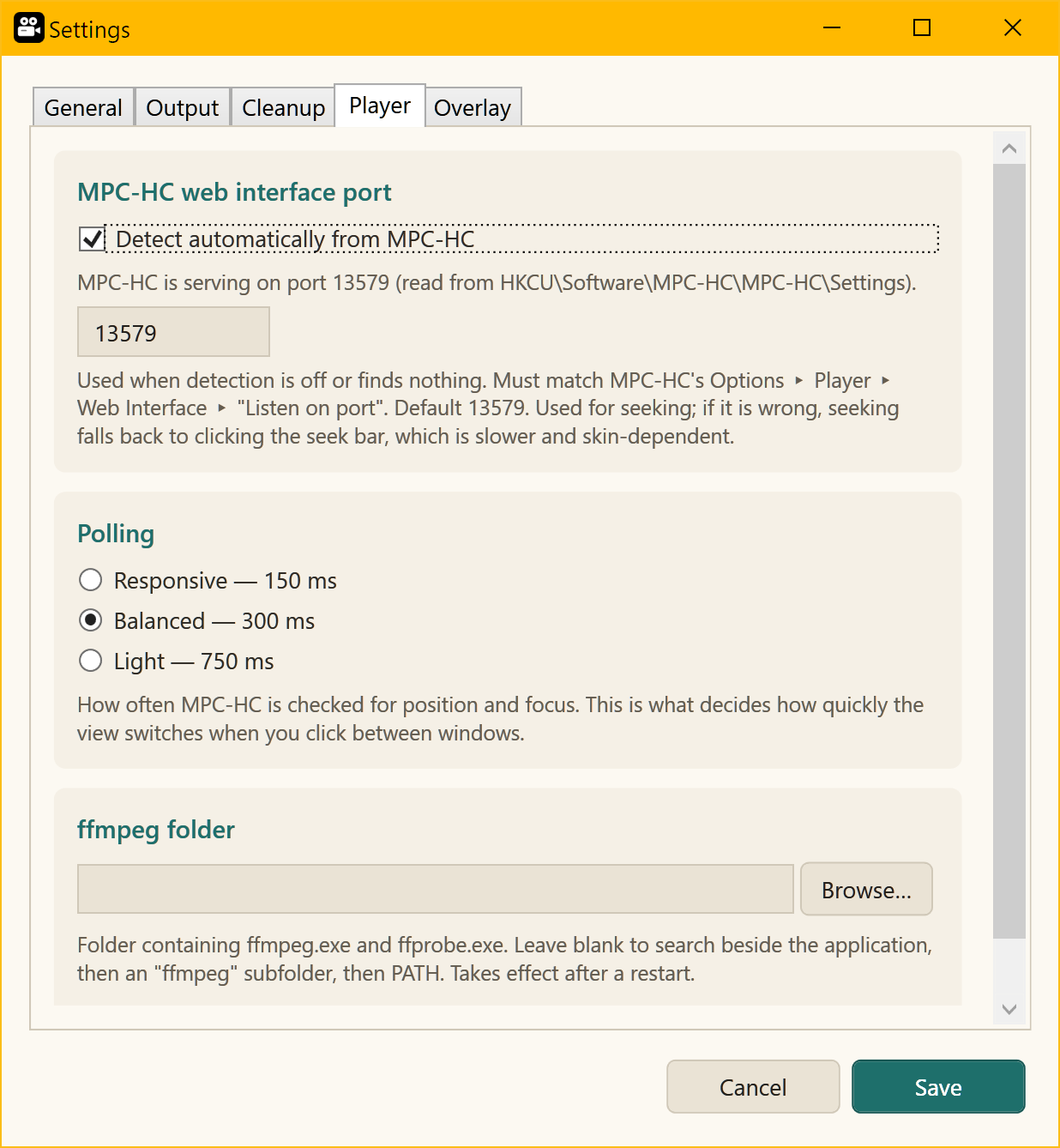
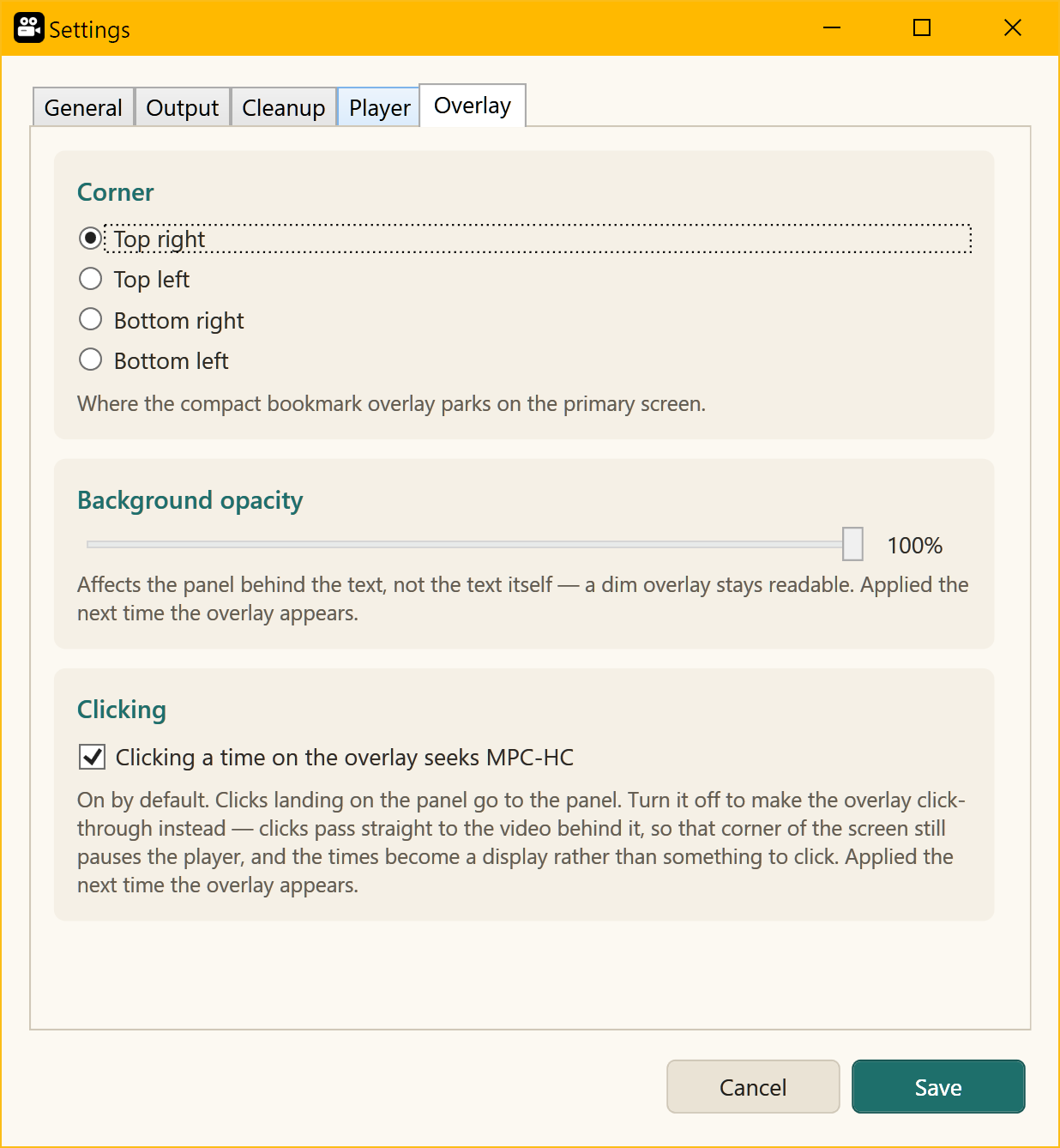
Settings, in five tabs:
| General — theme, run mode, instances | Output — format, quality, encoder |
 |
 |
| Cleanup — what is deleted, and where it goes | Player — web interface port, polling, ffmpeg |
 |
 |
| Overlay — corner, background opacity and click-to-seek | |
 |
|
Bookmarks
A bookmark is a timestamp pair: press the hotkey once to open it, again to close it. An open bookmark shows as incomplete until it has an end time.
- Set timestamp:
<hotkey>— the menu label shows the live binding. - Closing a bookmark at or before its start is refused — not fudged forward into a bogus one-second cut. The bookmark stays open and says why, so the opening timestamp survives a mis-timed second press; seek past it and press again.
- A first timestamp at 0 is nudged to the first second — the player reports 0 before playback has really begun, and ffmpeg’s seek at 0 is unreliable.
- Cuts may touch but not overlap.
1:00 – 10:00followed by10:00 – 20:00is fine: the second begins exactly where the first ended, and nothing is in both.1:00 – 10:00alongside5:00 – 15:00is refused — they share five minutes, so both clips would carry it and a merge would play it twice. The refusal is the same wherever the times come from: the hotkey, a typed range, or a scan appended to an existing list. The frame arrows on each row stop a second clear of the neighbouring cut for the same reason. - Marks go forwards. A new cut has to open at or after the latest time already marked, so a mark cannot land behind work already done — not even in an empty gap. Nothing is added when it is refused, and the reason appears over the player. Landing exactly on the last mark is allowed: that is how one cut starts where the last one ended. A scan is the exception, since it proposes the whole file at once; to re-cut an earlier stretch, delete the cuts after it or scan with replace.
- Undo last bookmark removes the last single timestamp, not the pair: a closed bookmark loses only its end time and reopens; a lone start time is dropped. If that empties the file, the CSV goes too.
- Edit bookmarks opens the CSV in a text editor. Changes are picked up when the window regains focus; saving it empty deletes the file.
- Enter time / range… accepts
90,1:30,1:02:03,22s,5m,1h,1m30s, and ranges like1:00 - 2:30. A single time is the next timestamp, the same as pressing the hotkey: it closes the open bookmark if there is one, and opens a new one if there is not. A typed range needs no bookmark open. A rejected value re-opens the dialog explaining what went wrong and what is accepted, rather than closing. - Delete bookmarks deletes the CSV and marks the file not-loaded.
- Remove selected timestamps removes the checked cuts from the list and the file.
- Play all cuts / Play selected cuts seek MPC-HC to each cut and play it for its effective duration (duration ÷ speed). Timed against the wall clock, so cuts end where they should.
- Per-bookmark speed slider (0.25x – 2.0x) and a flip toggle that marks
cuts for vertical inversion, shown as
[F]on the row. - Flip, Rotate, Mute and Fade act on the checked cuts. With nothing checked they act on the highlighted row, so setting one of them on a single cut is a click rather than a tick, a press and an untick. Checks win whenever there are any: a deliberate selection is never narrowed to whichever row inside it happens to be highlighted.
- Only complete pairs can be checked — an open bookmark has no range to act on.
- Clicking a start or end time seeks MPC-HC to that moment.
- The timeline under the toolbar carries the position on the left, the length on the right, a bracket at each end of every cut, and the shape of the audio behind all of it — so a gap in the dialogue is visible before you seek to it. Clicking anywhere on it seeks the player there.
The CSV format matches the original AutoHotkey version. It is saved next to the video, and an empty one is never created.
Actions
The toolbar can be rearranged. Drag a button onto another and the row reorders under the pointer; let go and the order is saved. A press that does not move is still a click, so the buttons work as they always did, and a drag never fires the command it lands on.
Right-click the toolbar ▸ Customize toolbar (also under Options) opens the editor: a preview of your toolbar above, every available action below, drag between the two. Double-clicking adds or removes instead, for anyone who would rather not drag. Three special blocks sit with the actions — a fixed spacer, an expander that takes up whatever width is left so anything after it is pushed right, and new row, which starts another line of the same toolbar. The preview is as wide as the window is allowed to get narrow, so a row that fits there fits at any size; a longer one wraps by itself, exactly as it will in the program. Options ▸ Reset toolbar order puts everything back.
A button added in a later release does not appear on a toolbar you have customized — it waits in the Customize dialog, so your layout is never rearranged by an update.
Output filenames use the active naming tag (see Options), e.g.
vacation.mp4 → vacation[done].mp4. Choosing None under Options writes
vacation.mp4 unchanged instead.
- Merge selected / all / any — always available. With cuts loaded it joins the checked ones, or all of them when none are checked. With no video or cuts it falls back to a file picker and joins whatever you select.
- Split selected / all — one clip per cut.
- Fade — fades the checked cuts up at the start and down at the end, picture and sound together. The length is set under Settings ▸ Output and is capped at half the clip, so a short cut fades as far as it can rather than being refused. Press again to take the fades off.
- Convert files to MP4… — takes multiple files at once.
- Export cuts as GIF / WebP… — writes each checked cut as an animation, no sound. Asks for the frame rate and width, which decide the size more than anything else; the cut’s own flip, rotation, speed and fades are applied. The original is never deleted after this, whatever Cleanup says. An animated WebP plays in any browser and in Windows Photos, but a fair number of desktop image viewers handle only still WebP and report the file as unreadable — that is the viewer, not the export.
- Save the frame on screen… — writes the frame MPC-HC is showing to a PNG at its own size, next to the other output. The time is part of the filename, so a run of grabs does not collide.
- Strip audio… — also takes multiple files at once, and asks what to write: an MP3 of the audio, a copy of the video with its sound removed, or both. The silent copy is not re-encoded, so it is quick and the picture is untouched. Neither option modifies the file you picked; it is only deleted afterwards if you have asked for that under Settings ▸ Cleanup.
Filename collisions
When an output name is taken you are asked to Overwrite, Increment or
Rename. Increment bumps the number in the bracket — [done] → [done2],
[cs3] → [cs4] — and Rename changes only the base name, keeping the suffix.
The question repeats until the name is actually free, since a rename or an
increment can collide too.
Filename rules
Names the app writes allow letters, numbers, dash, underscore, square brackets and parentheses. No spaces, and no doubled punctuation. A name that breaks the rules prompts for a replacement, pre-filled with a suggested correction (spaces become dashes, disallowed characters are dropped, runs collapse). The field rejects bad characters as you type and explains why. Source files are never renamed — only what the app is about to write has to comply.
Views
- View ▸ Switch views automatically is the whole of the view control, and is on by default. The view follows focus: a compact always-on-top overlay listing just the bookmarks while MPC-HC is the active window, and the full window as soon as it is not. The overlay never takes focus, so it sits over the video without getting in the way, and it never floats over an unrelated application — anything else taking focus brings the full window back.
- X returns to the full window while the player still has focus. If the player is fullscreen, X takes it out of fullscreen on the way — nothing can be put in front of a fullscreen player, so leaving it is part of what showing the window costs. A windowed player is left as it is. X is live only while the overlay is actually on screen, so a stray “x” typed in another application cannot pull this window back. Nothing is stranded by that: whenever the overlay is down, the full window is up in its place.
- Turning the setting off keeps the full window up at all times. The timestamp hotkey still works from the player, and confirms each press with a brief on-screen message giving the bookmark number and the time recorded — without it the hotkey would appear to do nothing, since the window it updates is behind the player. That confirmation appears even if you have toasts switched off, because in this state there is nothing else on screen to show it.
Picking the view by hand — View ▸ Minimal and View ▸ Full — has been removed. They were a mode with nothing on screen naming which one was in force, and following focus is what they were mostly being used to approximate.
The overlay comes down if the bookmark list empties (opening another video in the player clears it), and returns with the next bookmark.
Settings ▸ Overlay ▸ Clicking makes the overlay’s timestamps seek MPC-HC, the way they do in the full window. On by default. The cost is that the panel catches those clicks, so that corner of the screen no longer pauses the video — turn it off to make the overlay click-through instead, and clicks over it reach the video underneath as if it were not there. The transparent area around the panel is unaffected either way. The overlay never takes focus, so seeking from it does not bring the full window back.
Timeline
The bar under the toolbar shows playback position plus a range mark per bookmark — amber normally, teal when checked, orange when marked for inversion, and a thin red tick for an open bookmark.
Progress
Running an action shows a panel above the status bar with the operation, file n of m, the current file and step, percentage, elapsed and remaining time. The bar’s color is interpolated from the percentage: black → red → orange → yellow → green.
Routine messages go to the status bar, not popups. Dialogs are reserved for confirming destructive actions, reporting real failures, and asking for input.
Files and folders
Two separate output destinations:
- Save to: — where merge, split, convert and strip audio write. Follows the loaded video’s folder until you pick one, then stays put for the session. Resets on restart.
- Quick save: — used only by the one-click save button on each bookmark row. Persisted.
Quick save shortcuts (File menu) are folders with a Set / Remove submenu; Set points Quick save at that folder. Removing one never changes the current Quick save destination.
Shortcuts (own menu) is a separate list that simply opens folders in Explorer. It has nothing to do with quick save.
History (own menu) lists recently played videos; click one to launch it in MPC-HC. Dead entries are pruned when clicked. Only real video files are ever recorded.
Drag and drop a video, a .csv or a .pls onto the window to load it.
Playlists
- Playlist folder: — the folder scanned for
.plsfiles. - Load playlist… loads a playlist and starts the first entry that still exists, skipping missing ones. The player receives the playlist itself, so the whole list lands in its playlist.
- A playlist that is empty, or has no files that still exist, is not loaded.
- Unload playlist forgets the loaded playlist.
- Each playlist expands to its videos. View playlist content opens the
.plsin a text editor — not the default handler, which is a media player and would simply play it. A missing entry offers only Remove, which deletes it from the file and renumbers the remaining entries contiguously. - Add current video appends to the loaded playlist without prompting, or asks which playlist when none is loaded.
Options
- Current rename tag: shows the active suffix, with an Example: line beneath it. Click any tag in the list to activate it (marked ✓).
- None — no tag at all. Output keeps the source’s own name, so a clip saved
beside its source wants the same filename and you are asked whether to replace
it; nothing is overwritten without that prompt. Where one operation writes
several files the second onward are numbered
[2],[3], since two files in a folder still cannot share a name. Whichever tag was selected stays selected, so picking it up again is one click. - Add new naming tag… (letters and numbers, max 50 characters) and Manage naming tags… (drag to reorder, double-click to rename).
- Switch views automatically — see Views.
Deleting
Delete files to the Recycle Bin (Settings ▸ Cleanup) is on by default, so anything the app removes can be undone. It covers every deletion, including the post-operation cleanup that runs without asking — which is what makes those settings safe to turn on.
Turn it off and deletions are permanent. On a volume that has no Recycle Bin — a network share, most removable media — files are removed outright either way, because leaving one behind would be worse than the deletion you asked for.
Hotkey
Set timestamp hotkey… opens a dialog that captures from the moment it
appears: press any key, key combination, or the middle / side mouse buttons, and
the field updates live. Click OK to set it. Disable hotkey turns it off.
The binding persists in settings.json.
The hotkey is global — it has to be, to work while MPC-HC has focus — but it only ever fires when MPC-HC is the active window and has a video open. Everywhere else the press is ignored and passed along untouched, so the default middle-mouse binding still opens links in a browser rather than quietly bookmarking whatever the player last had loaded.
Menu enablement
Menu items are enabled only when they can do something. The rules read from four pieces of state: whether a video is active in MPC-HC, whether a bookmark file is loaded, how many complete pairs exist, and how many are checked.
Worth knowing because they are not uniform: both Play commands need 2+ pairs, Split needs only 1, and Merge is always available. Undo, Edit bookmarks, Delete bookmarks and Remove-selected key off the bookmark file being loaded, not off a video being active. Convert, Strip audio and the playlist folder / load / new items are always enabled.
Requirements
- .NET 8 SDK to build. The published build is self-contained and needs no runtime installed on the target machine.
ffmpeg.exeandffprobe.exebeside the executable, in anffmpeg\subfolder, or onPATH— searched in that order, so a bundled pair makes the folder self-sufficient.- MPC-HC for anything that reads or drives the player.
Binaries are validated by running them, not merely found: a copy that exists but fails to load is skipped in favor of the next working candidate.
Building
See BUILD.md for the portable publish command and its caveats.
dotnet restore
dotnet build -c Release
Project layout
Dialogs/     CaptureHotkey, Conflict, Input, ManageShortcuts,
             ManageSuffixes, RenameFile
Helpers/     Converters, FileNameRules, PortablePaths, ProgressBrush,
             TimelineRanges
Models/      Bookmark, EditSession, HotkeyBinding, ShortcutEntry, SuffixEntry
Services/    Bookmark, FFmpeg, Hotkey, JobProgress, MpcHc, Playlist,
             Settings, StallMonitor, Toast
ViewModels/  MainViewModel — all commands and menu enablement
Views/       MainWindow, MinimalWindow, ToastWindow